Launching Your WordPress Website and What Comes Next
A website launch is like a stage production. The curtain rises on opening night, but behind the scenes, there’s ongoing work refining performances, adjusting lighting, and ensuring the audience gets the best experience.
A smooth WordPress website launch requires more than just hitting ‘publish’—it demands thorough testing, optimization, and continuous monitoring. From minimizing downtime to fine-tuning performance and tracking analytics, the post-launch phase is just as critical as the launch itself.
Once your site is live, check for any lingering issues, monitor real-time traffic, and ensure Google is indexing your pages properly. Setting up Google Analytics, verifying Search Console settings, testing contact forms, and checking for broken links will help keep your site running at peak performance. A successful launch isn’t just about going live, it’s about staying live, thriving, and growing.
If you haven’t already, be sure to check out my Pre-Launch Checklist for everything leading up to this point. Now, let’s make sure your site goes live without a hitch—and stays that way.
Table of Contents
FUN FACT – Save Your Progress!
This page uses local storage to remember your checkbox selections, so you can pick up where you left off. Just keep in mind, if you clear your browser history, your progress might be lost!

1.
Website Migration (Launch Time)
As you prepare for your WordPress site launch, it’s essential to address all the technical aspects that will support a smooth, successful experience. From selecting the right hosting provider to ensuring that your domain is properly pointed, each step is crucial in setting up a solid foundation for your site’s migration and successful launch.
NOTE: These instructions assume you are building your website on a staging (development) environment and will be migrating it to a new server for launch.
-
Before moving forward, make sure your domain is registered and configured properly. If it’s not set up yet, take care of this step now.
-
Make sure to choose a hosting provider that offers great support and scalability, suited to your site's future needs.
-
As mentioned in the pre-launch tutorial, it's essential to back up your site’s files and database on your staging site. If you haven’t already created a backup, you can use a plugin like UpdraftPlus, BackupBuddy, or All-in-One WP Migration. Ensure the backup is safely stored before proceeding with the migration.
-
Before making any public DNS changes, you can update your local hosts file to map your domain to the new server’s IP. This allows you to access the site on the new host for testing before it goes live. This method is commonly used by web developers and site owners to ensure the site works correctly on the new server, enabling you to troubleshoot any issues without impacting the live site. You can find a quick tutorial here.
-
Set up a MySQL database for your WordPress site through your hosting provider's control panel, and keep track of the database name, username, and password for future reference.
-
Set up a fresh WordPress installation on the new server to prepare for restoring the backup. Ensure it matches the same WordPress version used in the backup.
-
After setting up WordPress on the new server, install the same backup plugin you used to create the backup, such as UpdraftPlus, BackupBuddy, or All-in-One WP Migration. Then, upload the backup file through the plugin’s restore option and follow the on-screen prompts to complete the process. This will transfer your site’s files, database, and configurations automatically.
-
With the hosts file update in place, visit your site’s domain in a browser to verify that everything is working properly before updating public DNS records. Once testing is complete, remove the hosts file entry.
-
Once you've confirmed the site is functioning properly, update your domain’s DNS records to point to the new server. To point a domain to a new server, you can either update the A record to the new server’s IP address or change the nameservers to those provided by the new host. If you're using third-party email services, be sure to update the MX records to avoid disruptions in email delivery. These changes may take anywhere from a few minutes to 48 hours to propagate across the internet.
-
After launching your site, it's important to remove any leftover staging site data unless you plan to keep it for future development. This includes databases, files, or subdomains that may still be active. Keeping unnecessary staging data can lead to security risks or can cause confusion. If you don’t need the staging environment anymore, safely remove all related data to prevent it from affecting the performance or security of your live site.

2.
Post-Launch Review & Testing
After your site goes live, it’s crucial to test everything immediately to ensure it functions as expected. Make sure all critical features are operational and that there are no unexpected errors.
-
Verify that all forms (contact, subscription, etc.) are functioning properly. Test submitting them yourself to ensure emails are being sent and received accurately. This is vital to ensure visitors can easily reach you or complete transactions.
-
Ensure all premium plugins, themes, and third-party services are properly licensed and active. Unlicensed software may lose access to critical updates, security patches, and support, which can leave your site vulnerable or cause functionality issues. Check for expired licenses, renew them if necessary, and verify that all integrations (such as payment gateways or API-based services) are functioning correctly.
-
If your site relies on email communication (e.g., form submissions, user registrations), configure an SMTP plugin to ensure reliable email delivery. Proper SMTP setup ensures that your emails don’t end up in spam folders and are correctly authenticated, which is critical for communications with visitors and customers.
-
Double-check that SSL is properly configured across all pages. Ensure the site shows "HTTPS" and there's a padlock icon in the browser. Mixed content warnings should be resolved to avoid security vulnerabilities and trust issues.
-
If your site processes payments, conduct a test transaction using a live payment method to ensure all steps (from cart to checkout) work smoothly, including email receipts and payment confirmations.
-
Ensure that the user registration, login, and password reset processes are functional. Test both as an administrator and a regular user to make sure there are no access issues.
-
Confirm that the site is fully optimized for mobile devices by testing it across multiple screen sizes, devices, and browsers.
-
Ensure your site is free of broken links. These can negatively affect user experience and SEO. Use tools like Google Search Console or the Broken Link Checker plugin to identify any URLs that no longer work and fix them promptly.

3.
SEO & Analytics
Before launching a WordPress website, every SEO and analytics tool should be correctly set up. Issues like missing Google Search Console verification, incorrect analytics tracking, and improper robots.txt settings can hinder your site’s visibility and performance. This stage ensures that search engines can crawl and index your site properly, while analytics tools accurately track user behavior and conversions.
-
As I mentioned in my Pre-Launch Checklist, setting up 301 redirects is essential when changing, removing, or updating page URLs on your site, especially for pages already indexed in Google search results. This ensures both users and search engines are redirected to the correct locations, preserving SEO value and preventing broken links.
-
It's recommended to set up Google Tag Manager (GTM) before Google Analytics (GA). Once GTM is in place, you can then add Google Analytics as one of the tags within GTM. This allows you to manage all your tracking codes in one place and provides flexibility for future changes or additions to your site’s tracking needs without having to modify the code directly on your site.
-
Integrate Google Analytics to monitor user behavior, traffic sources, and other key metrics that will help you optimize site performance.
-
Link your site to Google Search Console to track how your site performs in search rankings, identify crawl errors, and enhance visibility on Google.
-
Ensure the XML sitemap is generated and submitted to search engines. Plugins like Rank Math will generate these automatically. The sitemap should then be uploaded to Google Search Console in the sitemap section.
-
Make sure the checkbox in your WordPress site under Settings > Reading is unchecked so search engines can crawl your live site and drive organic traffic.
-
A robots.txt file helps manage how search engines crawl your website. It’s a good practice to include your sitemap URL in the file to help search engines discover your content quickly. Additionally, you can block pages you don’t want indexed.

4.
Website Performance
Improving your site’s performance is crucial for providing a fast, reliable user experience. Not only does it benefit your visitors, but it can also improve your SEO rankings.
While it’s typical to conduct performance testing on a staging site, it’s also essential to test on the live site once optimizations like caching have been implemented.
-
Use caching plugins like WP Rocket or W3 Total Cache to store static files and reduce server load, speeding up page load times.
-
Use a Content Delivery Network (CDN) like Cloudflare to serve static content globally, reducing latency and improving site speed.
-
Minification reduces the size of files, speeding up your site. Plugins like Autoptimize or WP Rocket can help automate this.
-
Run tests on your website using tools like Google PageSpeed Insights, GTmetrix, or Pingdom. These tools provide insights and recommendations on where improvements can be made.
NOTE: Caching plugins can sometimes impact layout or functionality, particularly on different devices and browsers. Ensure you check the site’s performance across multiple devices to verify that the changes haven’t caused any issues with the user experience.

5.
Security & Backup
Website security and data protection are essential for keeping your site safe from threats and ensuring you can recover in case of disaster. This section includes steps to protect your site, prevent spam, and set up backups to maintain data integrity.
-
Install a comprehensive security plugin like Wordfence or Solid Security to safeguard your site from potential threats. These plugins provide firewall protection, malware scanning, and login protection to minimize vulnerabilities.
-
To protect your website from spam and malicious form submissions, integrate Google reCAPTCHA with your contact forms. This helps block automated bots from making submission.
-
Use a backup plugin or managed hosting solution to create regular backups of your website files and database. Tools like UpdraftPlus or BackupBuddy are great for this. Depending on your server size and storage capacity, consider off-site backup solutions like Amazon S3, Google Drive, or Dropbox to ensure redundancy.
-
Ensure that your WordPress admin password is strong and unique. Use a password manager like LastPass or Bitwarden to securely store it.
-
Regularly updating WordPress, themes, and plugins is crucial for security and performance. Outdated software can introduce vulnerabilities, so check for updates often and apply them manually to avoid conflicts. Remove unused plugins to reduce risks. For hassle-free maintenance, consider a WordPress Monthly Maintenance Plan.
Congrats, You’re Not Done Yet!
Congratulations on launching your website though. The heavy lifting is done, but now it’s time for the ongoing work to ensure your site stays smooth, secure, and up-to-date. This checklist is just the beginning. Regular updates, monitoring, and optimization are essential to keeping things running without a hitch. The real success of your site will depend on how well you maintain and adapt to changes down the line. Keep an eye on it, and good luck!
How to Point Domain to a New Server Locally
- Find the IP of the New Server: Log into your new hosting account or contact your host to get the IP address of your new server.
- Locate the Hosts File:
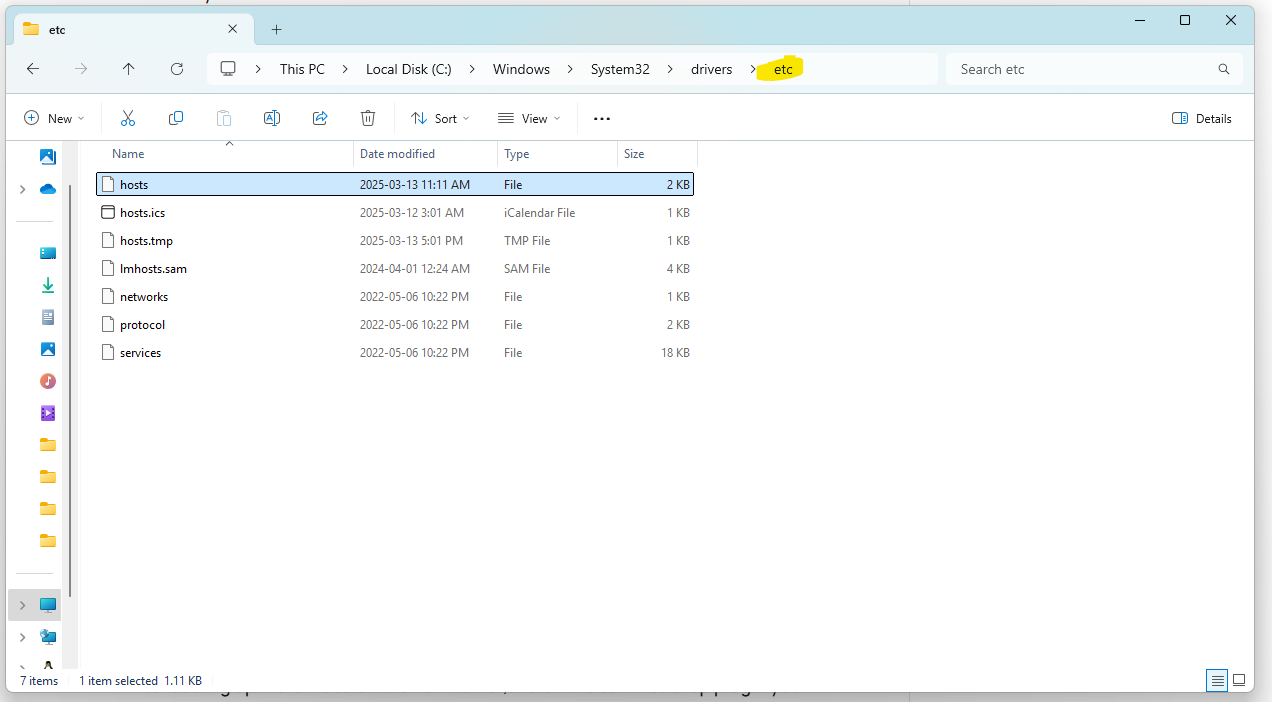
- Windows: Navigate to C:\Windows\System32\drivers\etc\hosts
- macOS/Linux: Open /etc/hosts in a text editor.
- Edit the Hosts File: Open the file with administrator or root privileges. Add the following line at the end:
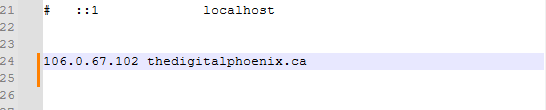
[New Server IP] [Your Domain](e.g.,123.123.123.123 example.com) - Save the File: Save changes.
- Test the New Site Locally: Open your browser and type in your domain (e.g., example.com). It should now load the site from the new server locally.
Host File Location (Windows):
Host File Contents Example: